

How to troubleshoot cartridge, charging and cleaning problems
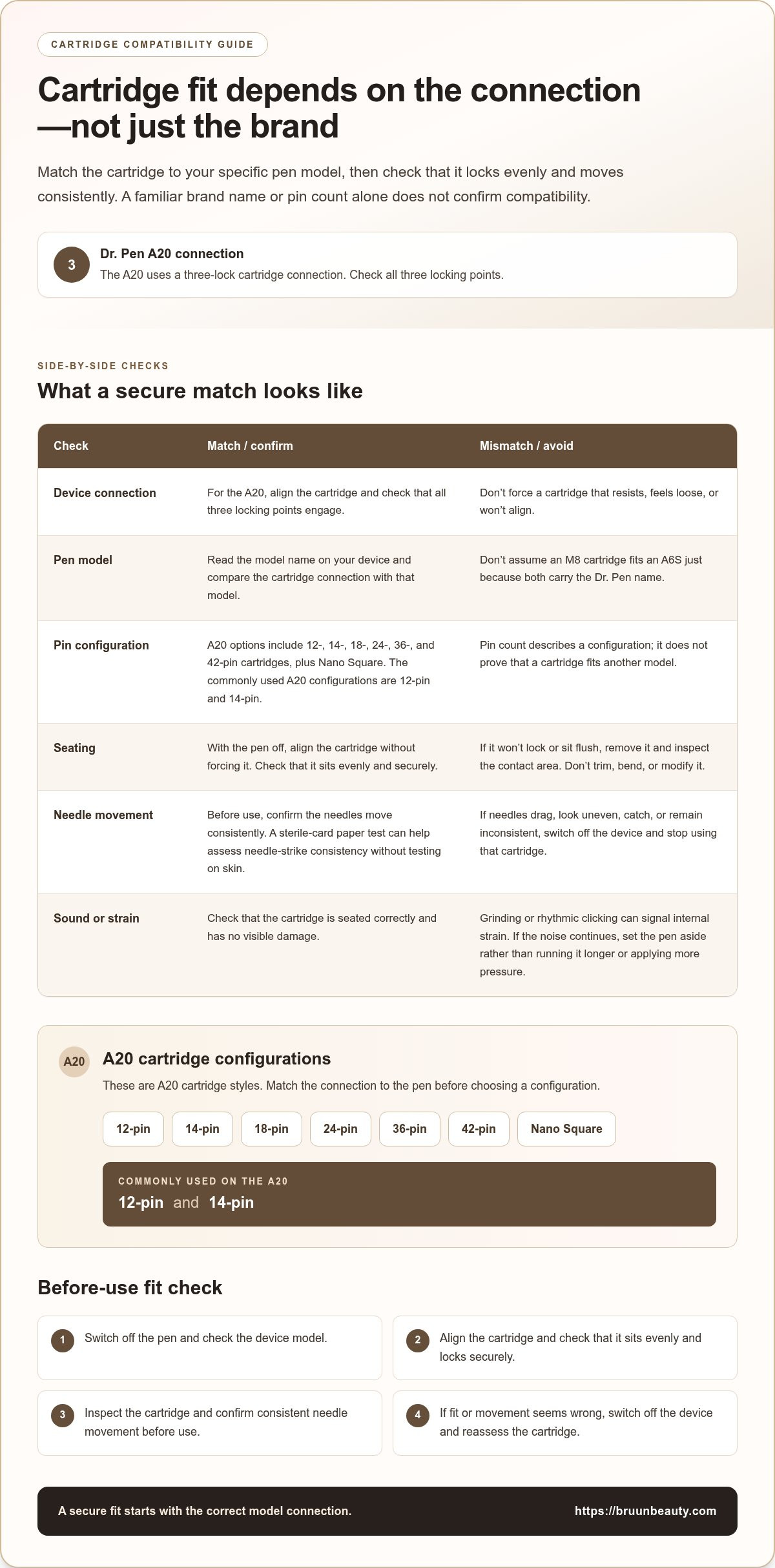
A cartridge that clicks into place isn’t automatically compatible. You can’t assume every brand will fit your pen; cartridge compatibility depends on the device’s connection, and the Dr. Pen A20 uses a three-lock cartridge connection. This Dr. Pen troubleshooting guide also walks you through secure attachment, charging and needle checks, and signs that fluid or residue may be obstructing the cartridge housing.
When a pen won’t charge, the needles don’t move as expected, or the device shuts down mid-session, the cartridge, battery, or cleaning routine could be contributing. A few practical checks can help you narrow down the issue before using the device again.
Check the cartridge fit, troubleshoot charging and display problems, and inspect needle movement. Keep serum and cleaning residue away from the cartridge housing. You can also track battery runtime and use careful storage to help spot changes in how the pen performs.
Key Takeaways
- For charging problems, start with the device’s charging setup and display, then use a corded connection to help distinguish a battery issue from a power dip.
- Check that the cartridge locks securely and that its needles move consistently before use; inspect the housing for dried serum or cleaning residue.
- Use shallow discharge cycles and store your pen in a clean, dry place away from moisture and direct sunlight to support its working life.
- If you take isotretinoin or have taken it within the past 6 months, microneedling may not be suitable, according to the U.S. Food and Drug Administration.
- When the device display or depth setting behaves unexpectedly, use a simple reset and low-setting check before deciding what to do next.
A20 charging and power troubleshooting
Start with the charging setup, then check whether the issue may involve the battery, connection, or device behavior. These checks can help you identify a cause before another session.
- Place the Dr. Pen A20 on its charging dock and wait until the display shows full. A low charge can cause power dips, so don’t begin troubleshooting until the display confirms a full battery. Once it reaches 100%, avoid leaving it on the charger overnight.
- If the pen still shuts down or loses power, test it with a corded connection only if the manufacturer permits operation while plugged in. If it runs steadily when plugged in but not on battery, the battery may be contributing to the power dips. Check the device’s instructions before using it this way, since some circuits aren’t designed for charging and high-speed operation at the same time.
- Give a pen that shuts down while plugged in a 60-second reset between treatment areas. This pause can help you distinguish a brief interruption from a problem that continues during operation. If the Dr. Pen M8 won’t turn off, hold its power button for 3 seconds; when checking its charging connection, plug it directly into a wall socket, not a power board or extension cable.
-
Check Device Power and Charging
Inspect the A20 display, dock connection, and charging cable in that order. Remove the device from the dock, check that its connection is seated properly, then place it back and look for the full-charge display. For an M8, use a direct wall socket during troubleshooting. These steps help separate a charging connection issue from battery-related power problems.
-
Recognize Safety Risks and When to Stop
Stop using the device if it becomes too hot, and let it cool before trying again. Keep each device session within 30 minutes to allow the motor to cool. Before using a pen while plugged in, verify its safety protocols. Microneedling may not be suitable for people taking isotretinoin or who have taken it within the past 6 months, according to the U.S. Food and Drug Administration.
- Keep charging separate from cleaning. Power down and disconnect the device before cleaning, and keep liquid away from its charging connections. Let it dry fully before reconnecting it to power. This reduces the chance of moisture or cleaning solution reaching electrical contacts.
Can I use any brand of needle cartridge with my professional pen?
No. The cartridge must match your specific pen’s connection; brand or pin count alone isn’t enough. Use this Dr. Pen troubleshooting guide to assess the fit before testing needle movement.
-
Check Cartridge Fit and Three-Lock Connection
Turn off the pen and align the cartridge with its housing without forcing it. The Dr. Pen A20 uses a three-lock cartridge connection, so check that all three locking points engage. The cartridge should sit evenly. If it resists, feels loose, or won’t align, remove it and inspect the contact area before trying again.
-
Check Model Cartridge Compatibility
Read the model name on your device before choosing a cartridge. Don’t assume an M8 cartridge fits an A6S because the names share the Dr. Pen brand. Compare the cartridge connection with the device model, then check that it seats properly. If it doesn’t lock or sit flush, don’t force it into place.
- For an A20, consider the available cartridge configurations only after matching the connection. Replacement options include 12-, 14-, 18-, 24-, 36-, and 42-pin cartridges, plus Nano Square. The commonly used A20 configurations are 12-pin and 14-pin. These options describe A20 cartridge styles; the pin count doesn’t establish fit on another model.
- Switch off the device if the needles drag, look uneven, or appear to catch. Remove the cartridge and inspect it, then check that it sits evenly when reattached. A sterile-card paper test can help assess needle-strike consistency without testing on skin. Stop using the cartridge if movement remains inconsistent.
- Pay attention to grinding or rhythmic clicking during operation. These sounds can signal internal strain, so investigate before the next session. Check that the cartridge is seated correctly and shows no visible damage. If the noise continues, set the pen aside rather than running it longer or applying more pressure.
- Keep compatibility and cartridge condition as separate checks. For example, an A20 14-pin cartridge still needs to match the A20 connection; its pin configuration doesn’t make it universal. If the device behaves differently after attachment, turn it off and reassess the cartridge rather than changing other settings to compensate.
- Before each use, confirm that the cartridge is secure and the needles move consistently. If it won’t attach, don’t trim, bend, or modify it to make it fit. A forced connection can leave the cartridge uneven and make needle movement harder to assess.
Cleaning and checking for needle blockages
Serum buildup or sanitizing residue can obstruct a cartridge housing and affect needle movement. Follow these checks in order before using the device again.
-
Check for Needle Blockages
Power down the Dr. Pen and remove its cartridge before inspecting the housing. Look for dried serum or sanitizing residue around the opening, as either can obstruct cartridge movement. Keep the device and needles clean after use. Keep the device clean and sterile, and let it dry before checking needle travel.
- Set the A20 to 1.0 mm, then briefly power it on to check visible needle travel. Keep the device pointed away from skin while you observe the cartridge. If the needles don’t extend and retract consistently, switch the pen off. Check the housing again for residue, then reseat the cartridge without forcing it.
-
Troubleshoot Stuck or Loose Needles
Switch off the pen and remove a cartridge when its needles look stuck, uneven, or loose. Check the cartridge for visible damage and inspect the housing for residue. Reattach it securely, then check movement at 1.0 mm on the A20. Stop if the needles still catch or move inconsistently; don’t press a faulty cartridge against the skin.
- Choose a lower needle length when beginning microneedling, then increase it gradually as your skin becomes accustomed to the process. On an A20, visible needle travel can be checked at 1.0 mm. The depth setting controls how far needles extend, so confirm the setting before each pass instead of relying on a previous session’s adjustment.
- Use a controlled, steady movement pattern across the surface rather than holding the device in one place. Keep your hand moving at a consistent pace and watch for interruptions in needle motion. If the cartridge drags or the device catches, pause and inspect the needle tips and housing before continuing.
- Separate cleaning from operation: power down before removing the cartridge or cleaning the device. Use alcohol or a disinfectant solution after each use, and don’t operate the device while it’s damp. Residue can dry around the cartridge housing, so inspect that area again before the next session.
- Compare the needle movement with the selected depth if visibility changes unexpectedly. The A20’s 1.0 mm setting gives you a specific point for checking visible travel. If movement remains uneven after cleaning and reseating, set the device aside rather than compensating with extra pressure or a deeper setting.
Battery runtime and expected pen lifespan
Battery runtime varies by model, and care and workload can affect performance over time. Track runtime and follow these steps to support dependable operation.
- Record the model and its runtime during a typical session. The Dr. Pen M8 battery lasts 3-4 hours, which gives you a reference for comparing sessions. Note whether the device runs on battery or corded power, and compare similar use rather than sessions with different settings or workloads.
- Check the A20 battery information when comparing models. Its battery cell is 700 mAh, but that capacity alone doesn’t tell you how long every session will run. Device settings and operating demands affect power use, so record the runtime you observe rather than assuming every A20 session will last equally long.
- Avoid fully draining a lithium-ion microneedling pen battery. Recharge before it is completely depleted, then note whether runtime remains consistent. Repeatedly running the battery down fully goes against the recommended charging pattern for these pens.
- Compare current battery performance with your own earlier notes. If an M8 that previously ran for 3-4 hours now loses power much sooner under similar use, check the charging setup and test corded operation. A steady corded session alongside shorter battery operation points toward battery-related power dips.
- Keep a simple log with the model, charging pattern, session length, and any power interruption. For example, record whether an M8 shuts down during battery use or also while connected to power. These details help you separate changing workload from a persistent battery or device issue.
- Store the pen in a clean, dry place away from moisture and direct sunlight. Before storage, clean the device and let it dry fully. Keeping moisture away helps protect its components, while using a consistent storage spot makes it easier to notice damage or changes.
- Schedule technical servicing for a professional microneedling device every 12 to 24 months, depending on clinic treatment volume. A high-volume clinic may need servicing sooner within that interval than a lower-volume practice. Track service dates alongside runtime so changes in performance don’t get mistaken for normal battery variation.
- Use approximately 3 years or more as the expected lifespan of a properly cared-for Dr. Pen M8, not as a guaranteed replacement date. Continue tracking runtime, charging behavior, and device condition. If power dips persist during corded use, treat that as a device issue rather than assuming battery age explains it.
Display issues and depth resets
If the display or depth setting seems inconsistent, reset the pen before checking its settings. Follow the device’s reset instructions, then confirm the displayed depth before use.
- Power down the pen and leave it off for 60 seconds. This gives the logic board time to reset before you test the display again. Don’t change depth settings while the device is running. After the pause, turn it on and note whether the screen responds normally.
- Set the A20 to 0.25 mm and speed level 1 for the reset check. These are the recommended settings for testing after a reset. Keep the device pointed away from skin, then observe the display and needle movement. If the displayed setting changes unexpectedly, stop and repeat the reset sequence.
- Compare the screen reading with the A20’s depth range. The device has nine fixed depth steps from 0 to 2.0 mm, spaced at 0.25 mm intervals. That means a selected setting should correspond to one of those steps. Check the displayed value after each adjustment instead of estimating from the dial position.
- Check a familiar setting during calibration, such as 1.5 mm. Select it, then confirm the screen shows the same depth before operating the pen. If the display shows another value, power down and repeat the 60-second reset. Don’t begin a session until the selected and displayed settings match.
- Move through the A20 depth settings one step at a time. Its 0.25 mm increments make a skipped or inconsistent reading easier to spot. Pause after each adjustment and read the screen. If the display jumps, freezes, or fails to reflect a change, stop testing rather than relying on memory.
- Keep speed and depth checks separate. The A20 has six speed levels, so hold the speed at level 1 while checking the 0.25 mm depth setting. Changing both controls at once makes it harder to identify which setting is behaving unexpectedly. Once the depth display responds consistently, check other settings separately.
- Write down the displayed depth and the setting you selected if the issue returns. For example, note whether 1.5 mm appeared correctly after resetting, or whether the screen showed a different step. A brief record helps you spot a repeated display problem without guessing from a previous session.
- Stop using the pen if its display remains unreliable after the reset and setting checks. If you can’t verify the depth reading, you can’t be sure which setting the device is using. Keep the device powered down until the display and selected depth correspond consistently.
Bruun Beauty: Advanced Microneedling Serum SD - Control Salmon DNA Ampoule Serum
Advanced Microneedling Serum SD - Control Salmon DNA Ampoule Serum is a skincare option to consider after checking your device. It is a Salmon DNA ampoule serum, making it one option to consider when choosing skincare for your routine.
A serum won’t resolve a charging fault, blocked cartridge, or inaccurate display. Address device problems first, then choose skincare according to your routine and the product directions. This keeps a product choice separate from a mechanical fix.
For the serum details and other skincare options, visit bruunbeauty.com. You’re also welcome to contact Bruun Beauty with questions about its offerings.
Build a More Reliable Routine for Your Next Session
Make device checks part of your preparation, rather than waiting for a problem. A consistent routine can help you notice changes in charging, displayed settings, or needle movement before you begin. Keep notes on recurring issues so you can compare what happens across sessions instead of guessing when something feels different.
Use this Dr. Pen troubleshooting guide as a practical reference, then choose skincare and device supplies that fit your routine. Bruun Beauty offers DR. PEN Microneedling Devices, Jelly Mask Kits, and Advanced Microneedling Serum SD - Control Salmon DNA Ampoule Serum. Follow product directions, and don’t treat skincare products as a fix for a mechanical issue.
Explore Bruun Beauty’s microneedling range to find serums and devices for your routine.
Check your device carefully before use, and choose products that suit your routine.
Frequently Asked Questions
How do I fix a microneedling pen that keeps turning off during use?
First, identify when the shutdown happens: at startup, during a pass, or after extended operation. Note the selected speed and whether the pen runs on battery or corded power. Change only one condition during your next device check so you can tell what affects the shutdown. If the pen becomes hot or continues stopping, discontinue use rather than working around the interruption.
What causes the needles to “drag” or scratch the skin surface?
Dragging can result from a damaged cartridge, inconsistent needle movement, or excessive pressure. Stop and compare the cartridge’s condition with an unused, compatible one. If a fresh cartridge moves smoothly, the original may be the problem; if both behave similarly, the device may need attention. Don’t compensate by pressing harder or making repeated passes over the same area.
Why is my microneedling pen making a loud grinding noise?
A loud grinding noise can indicate internal strain. Turn the device off rather than continuing to reproduce the sound. Note whether it began after a cartridge change, a drop, or extended operation. That context may help distinguish a sudden change from a persistent device issue. Don’t open the pen or attempt an internal repair, as this could cause further damage.
How to troubleshoot a Dr. Pen microneedling pen that won’t turn on
Check whether the pen responds when you press its power button, then inspect the button and power connections for visible damage or obstruction. Confirm that the device has had time to charge and that its controls aren’t stuck. If the screen remains blank and the pen gives no response, stop repeated attempts and record the model and symptoms for the next support step.
Why is my Dr. Pen not charging or holding a charge?
A charging problem can involve the power source, cable, dock connection, or battery. Look for visible damage or debris around the charging contacts, and compare performance under similar operating conditions. Keep a simple record of how long the pen runs and whether it loses power at startup or mid-session. A consistent pattern of shorter runtime can help distinguish a recurring issue from a one-time interruption.
How to fix Dr. Pen cartridge not fitting, locking, or moving
Identify the exact pen model and check that the replacement cartridge is intended for it. Don’t trim, bend, or force a cartridge to make it fit. If it attaches but needle movement seems uneven, compare a new, model-compatible cartridge to help distinguish a cartridge issue from a device issue. Stop if the pen still catches or moves inconsistently.
How to adjust Dr. Pen needle depth and speed settings safely
Adjust one control at a time, then read the display before starting. This makes unexpected changes easier to spot and helps prevent confusion between depth and speed. Keep a written note of the settings used for each device check, especially after a reset. If the displayed value doesn’t match your selection, don’t rely on the dial position or your memory.
How to clean and disinfect a Dr. Pen microneedling device
Separate the removable cartridge from the pen before cleaning, and follow the device’s cleaning directions for each part. Keep the powered body away from soaking or direct liquid exposure. Pay special attention to the cartridge housing, where dried product can interfere with fit. After cleaning, let the components dry fully and inspect them before storage so residue doesn’t carry into your next setup.
The Best Korean Microneedling Serums of 2026: An Esthetician’s Guide to Glowing Skin
The Best Korean Microneedling Serums of 2026: An Esthetician’s Guide to Glowing Skin
Related Posts

Consistent Microneedling and the Long-Term Changes to Expect

Aftercare choices to lower infection risk at home after microneedling

How to Create a Relaxing At-Home Spa Day With Simple Rituals

Sunscreen Recommendations After Microneedling: How to Protect Healing Skin

Investing in my skin for the future: what deserves my budget

Post-microneedling skincare routine for masks, makeup, and recovery

Skin Peeling After Microneedling: What to Avoid and When to Resume Makeup
